> ## Documentation Index
> Fetch the complete documentation index at: https://docs-staging-actions-triggers-prototype.mintlify.site/llms.txt
> Use this file to discover all available pages before exploring further.
> Learn how to use Passwordless connections with the SMS authentication method.
# Passwordless Authentication with SMS
You can configure Passwordless authentication to send a one-time password (OTP) to a user through SMS. To learn more, read [Configure Email or SMS for Passwordless Authentication](/docs/authenticate/login/auth0-universal-login/passwordless-login/email-or-sms).
Auth0 supports using [Twilio](https://www.twilio.com) and a custom phone provider to send OTPs. If you would like to use a custom phone provider with Auth0 Actions, read [Configure a Custom Phone Provider](/docs/customize/phone-messages/configure-phone-messaging-providers/configure-a-custom-phone-provider) or [Configure a Custom Phone Provider with Terraform](/docs/customize/phone-messages/configure-phone-messaging-providers/configure-a-custom-phone-provider/configure-a-custom-phone-provider-with-terraform).
## How it works
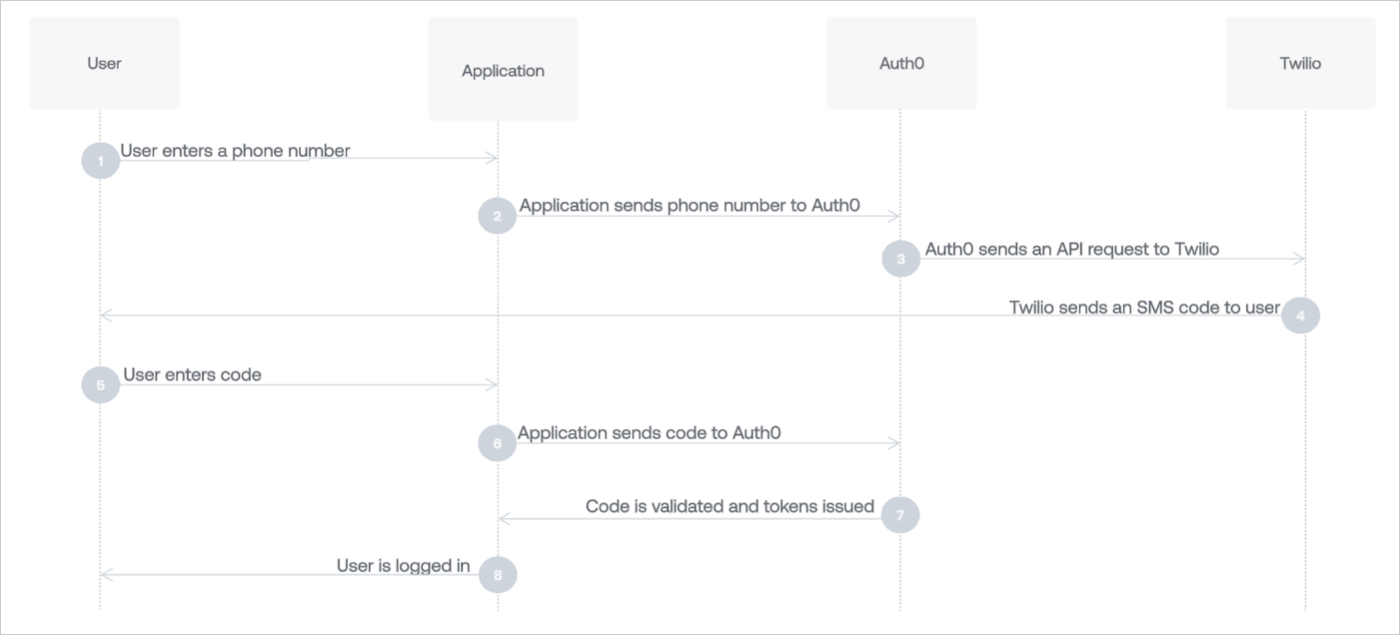
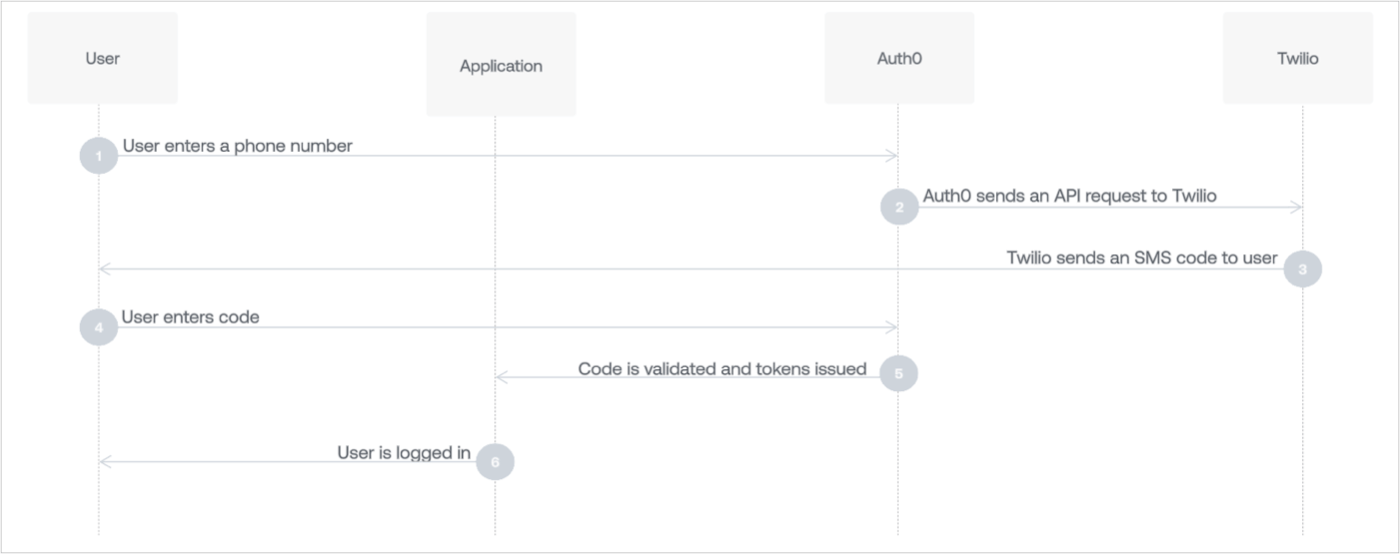
When a new user receives a code and enters it for the first time in your application, their user profile is created on the `sms` connection before being authenticated by Auth0.
If the phone number that the OTP was sent to matches an existing user, Auth0 authenticates the user:
### Embedded Login
 ### Universal Login
 ## Configure the phone provider
1. In the Auth0 Dashboard, navigate to [Branding > Phone Provider](https://manage.auth0.com/#/phone/templates/phone/provider).
2. Enable the Phone Message Provider toggle.
## Configure the phone provider
1. In the Auth0 Dashboard, navigate to [Branding > Phone Provider](https://manage.auth0.com/#/phone/templates/phone/provider).
2. Enable the Phone Message Provider toggle.
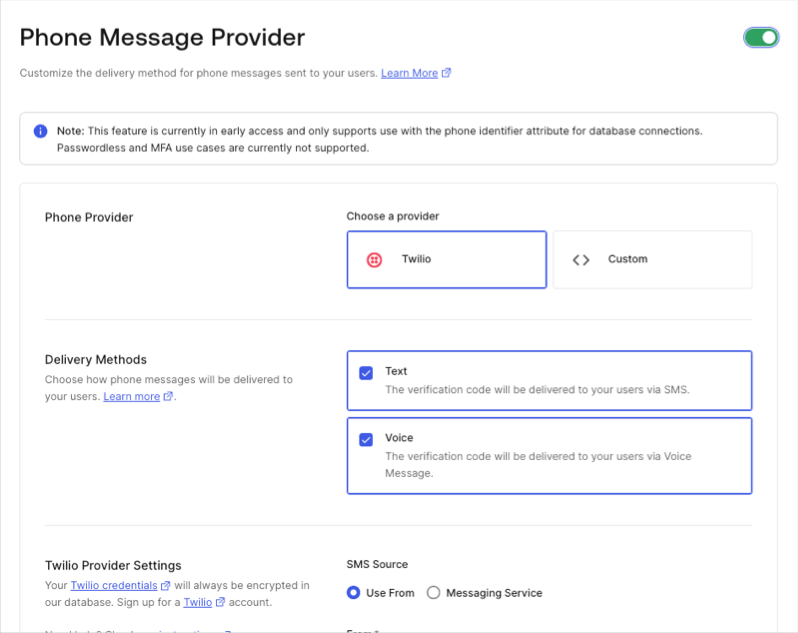 3. Select your phone message provider.
1. To use Twilio, follow [Configure Twilio as a Phone Messaging Provider](/docs/customize/phone-messages/configure-phone-messaging-providers/configure-twilio-as-a-phone-messaging-provider).
2. To use a custom provider, follow [Configure a Custom Phone Provider](/docs/customize/phone-messages/configure-phone-messaging-providers/configure-a-custom-phone-provider) to use Auth0 Actions.
4. Select your delivery method.
5. **Save** your changes.
## Legacy SMS gateway
If Auth0 Action's custom phone provider cannot support your use case, you can manage the custom SMS gateway on [passwordless SMS connections](/docs/authenticate/passwordless) with Management API. To learn more, read [Set Up Custom SMS Gateway for Passwordless Connections](/docs/authenticate/passwordless/authentication-methods/use-sms-gateway-passwordless).
### Configure Passwordless SMS settings
1. In **Message**, enter the body text of the SMS.
The `@@password@@` placeholder will automatically be replaced with the one-time password that is sent to the user.
2. Adjust settings for your **OTP Expiry** and **OTP Length**.
* Only the last one-time password (or link) issued will be accepted. Once the latest one is issued, any others are invalidated. Once used, the latest one is also invalidated.
* Only three failed attempts to input the one-time password are allowed. After this, a new code will need to be requested.
* The one-time password issued will be valid (by default) for three minutes before it expires.
* If you choose to extend the amount of time it takes for your one-time password to expire, you should also extend the length of the one-time password code. Otherwise, an attacker has a larger window of time to attempt to guess a short code.
3. Decide if you want to **Disable Sign Ups**. If you enable this setting, you can allow passwordless access for only existing users, but may expose your application to the threat of user enumeration attacks. To learn more, read [Passwordless Connections Best Practices](/docs/authenticate/passwordless/best-practices).
4. Select **Save**.
#### Multi-language support
The **Message** area supports multiple languages.
To specify a language, call the [Auth0 Authentication API Get Code or Link endpoint](https://auth0.com/docs/api/authentication#get-code-or-link) and set the value of the `x-request-language` header. When this header is not set, the language is extracted from the `accept-language` header, which is automatically set by the browser.
#### Message syntax
The **Message** area accepts Liquid syntax. You can use this syntax, combined with parameter values, to programmatically construct elements of the message.
For example, you can reference the `request_language` parameter to change the language of the message:
```liquid lines theme={null}
{% if request_language contains 'dutch' %}
Hier is uw verificatie code: {{ password }}
{% endif %}
{% if request_language contains 'fr-FR' %}
Ceci est votre code: {{ password }}
{% endif %}
```
The following parameters are available when defining the message template:
| Parameter | Description |
| -------------------- | -------------------------------------------------------------- |
| `password` or `code` | The password to use. |
| `phone_number` | The user's phone number. |
| `application.name` | The name of the application with which the user is signing up. |
| `request_language` | The requested language for message content. |
To learn more about using Liquid, read [Liquid for Designers on GitHub](https://github.com/Shopify/liquid/wiki/Liquid-for-Designers).
### Enable applications
Switch to the **Applications** view, and enable the applications for which you would like to use Passwordless SMS.
## Learn more
* [Auth0's Unified Phone Experience](/docs/customize/phone-messages/unified-phone)
* [Use the Unified Phone Experience for Passwordless](/docs/customize/phone-messages/unified-phone/unified-phone-experience-passwordless)
* [Configure Auth0 Unified Phone Experience](/docs/customize/phone-messages/unified-phone/configure-unified-phone)
3. Select your phone message provider.
1. To use Twilio, follow [Configure Twilio as a Phone Messaging Provider](/docs/customize/phone-messages/configure-phone-messaging-providers/configure-twilio-as-a-phone-messaging-provider).
2. To use a custom provider, follow [Configure a Custom Phone Provider](/docs/customize/phone-messages/configure-phone-messaging-providers/configure-a-custom-phone-provider) to use Auth0 Actions.
4. Select your delivery method.
5. **Save** your changes.
## Legacy SMS gateway
If Auth0 Action's custom phone provider cannot support your use case, you can manage the custom SMS gateway on [passwordless SMS connections](/docs/authenticate/passwordless) with Management API. To learn more, read [Set Up Custom SMS Gateway for Passwordless Connections](/docs/authenticate/passwordless/authentication-methods/use-sms-gateway-passwordless).
### Configure Passwordless SMS settings
1. In **Message**, enter the body text of the SMS.
The `@@password@@` placeholder will automatically be replaced with the one-time password that is sent to the user.
2. Adjust settings for your **OTP Expiry** and **OTP Length**.
* Only the last one-time password (or link) issued will be accepted. Once the latest one is issued, any others are invalidated. Once used, the latest one is also invalidated.
* Only three failed attempts to input the one-time password are allowed. After this, a new code will need to be requested.
* The one-time password issued will be valid (by default) for three minutes before it expires.
* If you choose to extend the amount of time it takes for your one-time password to expire, you should also extend the length of the one-time password code. Otherwise, an attacker has a larger window of time to attempt to guess a short code.
3. Decide if you want to **Disable Sign Ups**. If you enable this setting, you can allow passwordless access for only existing users, but may expose your application to the threat of user enumeration attacks. To learn more, read [Passwordless Connections Best Practices](/docs/authenticate/passwordless/best-practices).
4. Select **Save**.
#### Multi-language support
The **Message** area supports multiple languages.
To specify a language, call the [Auth0 Authentication API Get Code or Link endpoint](https://auth0.com/docs/api/authentication#get-code-or-link) and set the value of the `x-request-language` header. When this header is not set, the language is extracted from the `accept-language` header, which is automatically set by the browser.
#### Message syntax
The **Message** area accepts Liquid syntax. You can use this syntax, combined with parameter values, to programmatically construct elements of the message.
For example, you can reference the `request_language` parameter to change the language of the message:
```liquid lines theme={null}
{% if request_language contains 'dutch' %}
Hier is uw verificatie code: {{ password }}
{% endif %}
{% if request_language contains 'fr-FR' %}
Ceci est votre code: {{ password }}
{% endif %}
```
The following parameters are available when defining the message template:
| Parameter | Description |
| -------------------- | -------------------------------------------------------------- |
| `password` or `code` | The password to use. |
| `phone_number` | The user's phone number. |
| `application.name` | The name of the application with which the user is signing up. |
| `request_language` | The requested language for message content. |
To learn more about using Liquid, read [Liquid for Designers on GitHub](https://github.com/Shopify/liquid/wiki/Liquid-for-Designers).
### Enable applications
Switch to the **Applications** view, and enable the applications for which you would like to use Passwordless SMS.
## Learn more
* [Auth0's Unified Phone Experience](/docs/customize/phone-messages/unified-phone)
* [Use the Unified Phone Experience for Passwordless](/docs/customize/phone-messages/unified-phone/unified-phone-experience-passwordless)
* [Configure Auth0 Unified Phone Experience](/docs/customize/phone-messages/unified-phone/configure-unified-phone)