> ## Documentation Index
> Fetch the complete documentation index at: https://docs-staging-actions-triggers-prototype.mintlify.site/llms.txt
> Use this file to discover all available pages before exploring further.

> Configure an update policy form using Forms for Actions

# Use Cases: Configure an update policy form using Forms

<Card title="Before you start">
  1. Create a [Machine-to-Machine Application](/docs/get-started/auth0-overview/create-applications/machine-to-machine-apps) with the following scopes enabled:

  * `read:users`
  * `update:users`
  * `create:users`
  * `read:users_app_metadata`
  * `update:users_app_metadata`
  * `create:users_app_metadata`

  2. Add a [Vault connection](/docs/customize/forms/vault) using the M2M application credentials.
</Card>

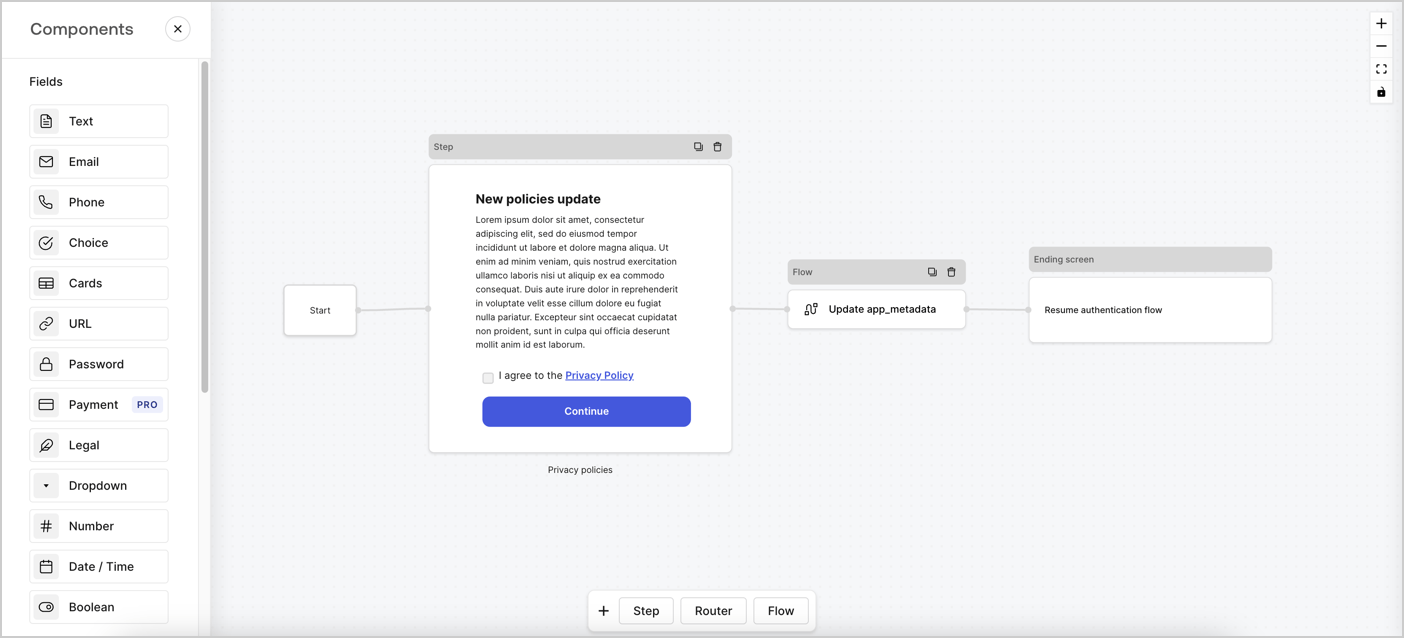
Forms for Actions allows you to create custom privacy policies flows and store the consent under the `app_metadata` object.
<Frame>
  <img src="https://mintcdn.com/docs-staging-actions-triggers-prototype/sLHXV70A3uVzop12/docs/images/cdy7uua7fh8z/6i68dMvHDTijfRmSgN1x8Q/ad900e7d4c0fb34645921435472b8684/privavy-policy-form.png?fit=max&auto=format&n=sLHXV70A3uVzop12&q=85&s=423548f2f2178aacdcd75dcb813feefe" alt="Dashboard > Actions > Forms > Privacy policy use case" data-og-width="1404" width="1404" data-og-height="638" height="638" data-path="docs/images/cdy7uua7fh8z/6i68dMvHDTijfRmSgN1x8Q/ad900e7d4c0fb34645921435472b8684/privavy-policy-form.png" data-optimize="true" data-opv="3" srcset="https://mintcdn.com/docs-staging-actions-triggers-prototype/sLHXV70A3uVzop12/docs/images/cdy7uua7fh8z/6i68dMvHDTijfRmSgN1x8Q/ad900e7d4c0fb34645921435472b8684/privavy-policy-form.png?w=280&fit=max&auto=format&n=sLHXV70A3uVzop12&q=85&s=8292b43da801764b53f014e8799bb969 280w, https://mintcdn.com/docs-staging-actions-triggers-prototype/sLHXV70A3uVzop12/docs/images/cdy7uua7fh8z/6i68dMvHDTijfRmSgN1x8Q/ad900e7d4c0fb34645921435472b8684/privavy-policy-form.png?w=560&fit=max&auto=format&n=sLHXV70A3uVzop12&q=85&s=daef70e1398acf6470312cb3f7606db6 560w, https://mintcdn.com/docs-staging-actions-triggers-prototype/sLHXV70A3uVzop12/docs/images/cdy7uua7fh8z/6i68dMvHDTijfRmSgN1x8Q/ad900e7d4c0fb34645921435472b8684/privavy-policy-form.png?w=840&fit=max&auto=format&n=sLHXV70A3uVzop12&q=85&s=7e8401b284bf4ff6e87268de1d57b118 840w, https://mintcdn.com/docs-staging-actions-triggers-prototype/sLHXV70A3uVzop12/docs/images/cdy7uua7fh8z/6i68dMvHDTijfRmSgN1x8Q/ad900e7d4c0fb34645921435472b8684/privavy-policy-form.png?w=1100&fit=max&auto=format&n=sLHXV70A3uVzop12&q=85&s=6dd4fb836efd1944ddf94aa91d9ea5d0 1100w, https://mintcdn.com/docs-staging-actions-triggers-prototype/sLHXV70A3uVzop12/docs/images/cdy7uua7fh8z/6i68dMvHDTijfRmSgN1x8Q/ad900e7d4c0fb34645921435472b8684/privavy-policy-form.png?w=1650&fit=max&auto=format&n=sLHXV70A3uVzop12&q=85&s=adb2f590b9131d4f14bfddf2850af86b 1650w, https://mintcdn.com/docs-staging-actions-triggers-prototype/sLHXV70A3uVzop12/docs/images/cdy7uua7fh8z/6i68dMvHDTijfRmSgN1x8Q/ad900e7d4c0fb34645921435472b8684/privavy-policy-form.png?w=2500&fit=max&auto=format&n=sLHXV70A3uVzop12&q=85&s=3975fd103dcbd16a635963854cb23a89 2500w" />
</Frame>

The sections below outline how you can create an Update Policy form using nodes and flows, along with steps for adding your form to a [Post Login](/docs/customize/actions/explore-triggers/signup-and-login-triggers/login-trigger) Action.

## Create a form from scratch

Follow these steps to create a form to gather information:

1. Open the Form editor by selecting **Auth0 Dashboard > Actions > Forms.**
2. Select **Create Form** > **Start from scratch**.

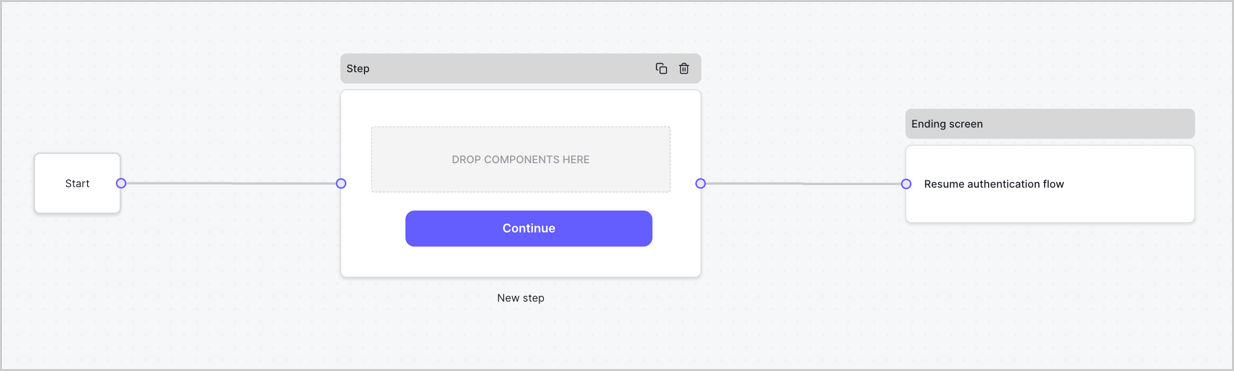
By default, a new form contains a Start node, a Step node, and an Ending screen node.
<Frame>
  <img src="https://mintcdn.com/docs-staging-actions-triggers-prototype/t4yVPvTKgaZSm3UA/docs/images/cdy7uua7fh8z/2TZ9jSjgEcARFpULI6hz4R/a4319a1bd482f2ee5cc23100fdb2f42c/New-form-Forms-for-action-use-case.png?fit=max&auto=format&n=t4yVPvTKgaZSm3UA&q=85&s=19bce5c6d1b28566a799685e788d47c7" alt="Dashboard > Forms > Use Cases > Form" data-og-width="1234" width="1234" data-og-height="371" height="371" data-path="docs/images/cdy7uua7fh8z/2TZ9jSjgEcARFpULI6hz4R/a4319a1bd482f2ee5cc23100fdb2f42c/New-form-Forms-for-action-use-case.png" data-optimize="true" data-opv="3" srcset="https://mintcdn.com/docs-staging-actions-triggers-prototype/t4yVPvTKgaZSm3UA/docs/images/cdy7uua7fh8z/2TZ9jSjgEcARFpULI6hz4R/a4319a1bd482f2ee5cc23100fdb2f42c/New-form-Forms-for-action-use-case.png?w=280&fit=max&auto=format&n=t4yVPvTKgaZSm3UA&q=85&s=7698429d1596173fbaf72eb5912cd9f2 280w, https://mintcdn.com/docs-staging-actions-triggers-prototype/t4yVPvTKgaZSm3UA/docs/images/cdy7uua7fh8z/2TZ9jSjgEcARFpULI6hz4R/a4319a1bd482f2ee5cc23100fdb2f42c/New-form-Forms-for-action-use-case.png?w=560&fit=max&auto=format&n=t4yVPvTKgaZSm3UA&q=85&s=f247b3daf37882722f130c4a07e0d605 560w, https://mintcdn.com/docs-staging-actions-triggers-prototype/t4yVPvTKgaZSm3UA/docs/images/cdy7uua7fh8z/2TZ9jSjgEcARFpULI6hz4R/a4319a1bd482f2ee5cc23100fdb2f42c/New-form-Forms-for-action-use-case.png?w=840&fit=max&auto=format&n=t4yVPvTKgaZSm3UA&q=85&s=03fd4d1748469483b54271a473d9c584 840w, https://mintcdn.com/docs-staging-actions-triggers-prototype/t4yVPvTKgaZSm3UA/docs/images/cdy7uua7fh8z/2TZ9jSjgEcARFpULI6hz4R/a4319a1bd482f2ee5cc23100fdb2f42c/New-form-Forms-for-action-use-case.png?w=1100&fit=max&auto=format&n=t4yVPvTKgaZSm3UA&q=85&s=4e20f5855fae86284f1409fb25ea1413 1100w, https://mintcdn.com/docs-staging-actions-triggers-prototype/t4yVPvTKgaZSm3UA/docs/images/cdy7uua7fh8z/2TZ9jSjgEcARFpULI6hz4R/a4319a1bd482f2ee5cc23100fdb2f42c/New-form-Forms-for-action-use-case.png?w=1650&fit=max&auto=format&n=t4yVPvTKgaZSm3UA&q=85&s=5ac46b3c21c64c6003bcb8ca1aa4e07f 1650w, https://mintcdn.com/docs-staging-actions-triggers-prototype/t4yVPvTKgaZSm3UA/docs/images/cdy7uua7fh8z/2TZ9jSjgEcARFpULI6hz4R/a4319a1bd482f2ee5cc23100fdb2f42c/New-form-Forms-for-action-use-case.png?w=2500&fit=max&auto=format&n=t4yVPvTKgaZSm3UA&q=85&s=31320b72364d305ddde41de3fbb16e7c 2500w" />
</Frame>

### Configure the Step node

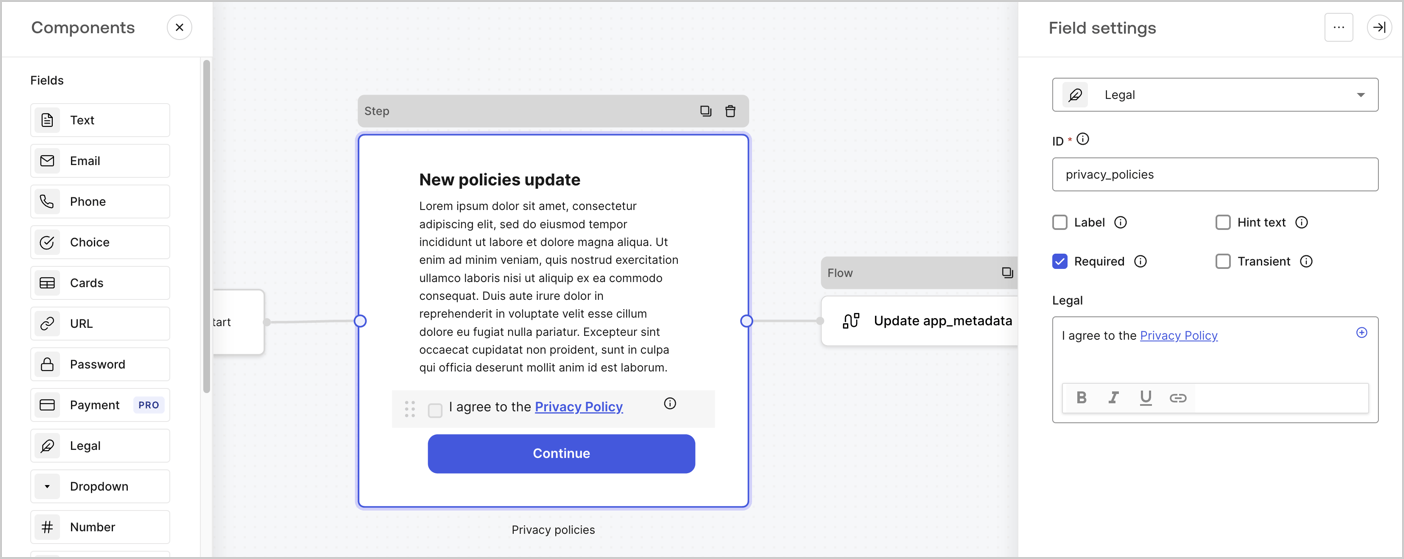
The Step node is the graphical interface visible to users. Add [Fields](/docs/customize/forms/nodes-and-components) to the Step node to collect the new agreement acceptance value by following these steps:

1. Drag a **Rich text** field from the **Components menu** into the **Step** node.

   * **Rich text**: Enter a description of your privacy policies updates.
   * Select **Save**.
2. Drag a **Legal** field into the **Step** node.

   * **ID**: Enter `privacy_policies`.
   * **Required**: Enable the checkbox.
   * **Legal**: Enter `I agree to the Privacy Policy`.
   * Select **Save**.
3. Select **Publish** to save.
<Frame>
  <img src="https://mintcdn.com/docs-staging-actions-triggers-prototype/GX6-DDltz1gQ_CpI/docs/images/cdy7uua7fh8z/59zFFjQjAnjogkc2QGIqqJ/0ad66b1b636544122aa4e65968b76c2c/privacy-policy-step-node.png?fit=max&auto=format&n=GX6-DDltz1gQ_CpI&q=85&s=5c4211d154c807b25c51871d5a2f31dc" alt="Dashboard > Actions > Forms > Use case privacy policy step node" data-og-width="1404" width="1404" data-og-height="559" height="559" data-path="docs/images/cdy7uua7fh8z/59zFFjQjAnjogkc2QGIqqJ/0ad66b1b636544122aa4e65968b76c2c/privacy-policy-step-node.png" data-optimize="true" data-opv="3" srcset="https://mintcdn.com/docs-staging-actions-triggers-prototype/GX6-DDltz1gQ_CpI/docs/images/cdy7uua7fh8z/59zFFjQjAnjogkc2QGIqqJ/0ad66b1b636544122aa4e65968b76c2c/privacy-policy-step-node.png?w=280&fit=max&auto=format&n=GX6-DDltz1gQ_CpI&q=85&s=e620d7ce71718cd6a7360fa07d801edc 280w, https://mintcdn.com/docs-staging-actions-triggers-prototype/GX6-DDltz1gQ_CpI/docs/images/cdy7uua7fh8z/59zFFjQjAnjogkc2QGIqqJ/0ad66b1b636544122aa4e65968b76c2c/privacy-policy-step-node.png?w=560&fit=max&auto=format&n=GX6-DDltz1gQ_CpI&q=85&s=3da7ebcb9e199b087f6117a16504ae75 560w, https://mintcdn.com/docs-staging-actions-triggers-prototype/GX6-DDltz1gQ_CpI/docs/images/cdy7uua7fh8z/59zFFjQjAnjogkc2QGIqqJ/0ad66b1b636544122aa4e65968b76c2c/privacy-policy-step-node.png?w=840&fit=max&auto=format&n=GX6-DDltz1gQ_CpI&q=85&s=734168aed56028459383a511cb0e2b2e 840w, https://mintcdn.com/docs-staging-actions-triggers-prototype/GX6-DDltz1gQ_CpI/docs/images/cdy7uua7fh8z/59zFFjQjAnjogkc2QGIqqJ/0ad66b1b636544122aa4e65968b76c2c/privacy-policy-step-node.png?w=1100&fit=max&auto=format&n=GX6-DDltz1gQ_CpI&q=85&s=1ff6c0424215a5da08fe2f3696bf677e 1100w, https://mintcdn.com/docs-staging-actions-triggers-prototype/GX6-DDltz1gQ_CpI/docs/images/cdy7uua7fh8z/59zFFjQjAnjogkc2QGIqqJ/0ad66b1b636544122aa4e65968b76c2c/privacy-policy-step-node.png?w=1650&fit=max&auto=format&n=GX6-DDltz1gQ_CpI&q=85&s=d2bc804b6577c25f71dea96c0bb38898 1650w, https://mintcdn.com/docs-staging-actions-triggers-prototype/GX6-DDltz1gQ_CpI/docs/images/cdy7uua7fh8z/59zFFjQjAnjogkc2QGIqqJ/0ad66b1b636544122aa4e65968b76c2c/privacy-policy-step-node.png?w=2500&fit=max&auto=format&n=GX6-DDltz1gQ_CpI&q=85&s=34aff2494ab7c2f9a50bcd574a268f24 2500w" />
</Frame>

### Configure the Flow node

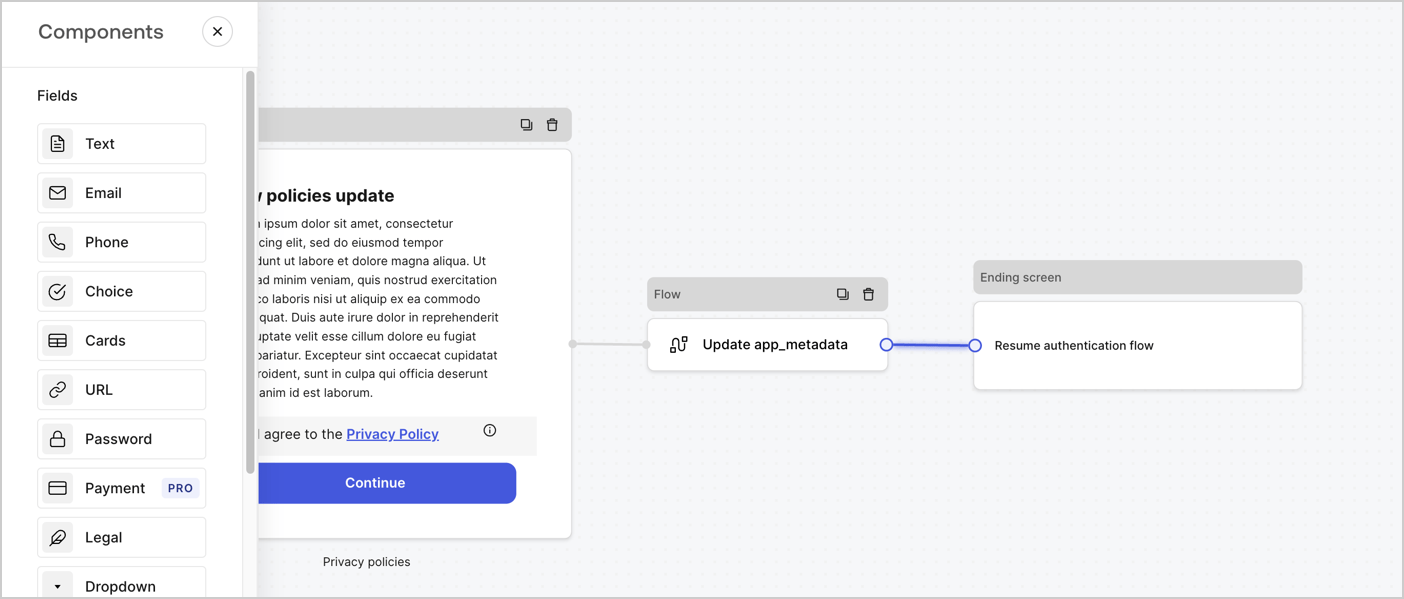
Add a **Flow** node after the **Step** node to update the `app_metadata` and resume the authentication flow by following these steps:

1. Select **Flow** from the bottom of the Form editor.
2. Remove the existing link between the **Step** and **Ending Screen** nodes.
3. Select the new **Flow** > **Click to add a flow** > **Create a new flow.**

   * Enter `Update app_metadata` in the **Name** field.
   * Select **Create**.
   * Select **Save**.
4. Link the **Flow** node to the **Step** and **Ending Screen** nodes as pictured below.
5. Select **Publish** to save.
<Frame>
  <img src="https://mintcdn.com/docs-staging-actions-triggers-prototype/sLHXV70A3uVzop12/docs/images/cdy7uua7fh8z/6YIkzm7SrpM9LW76AXuRzh/353c518fe82bbaa440836da1d83596d6/link-policies.png?fit=max&auto=format&n=sLHXV70A3uVzop12&q=85&s=de2c0eb8c7f448d690ad95fe59cdb1ce" alt="Dashboard > Actions > Forms > Form" data-og-width="1404" width="1404" data-og-height="599" height="599" data-path="docs/images/cdy7uua7fh8z/6YIkzm7SrpM9LW76AXuRzh/353c518fe82bbaa440836da1d83596d6/link-policies.png" data-optimize="true" data-opv="3" srcset="https://mintcdn.com/docs-staging-actions-triggers-prototype/sLHXV70A3uVzop12/docs/images/cdy7uua7fh8z/6YIkzm7SrpM9LW76AXuRzh/353c518fe82bbaa440836da1d83596d6/link-policies.png?w=280&fit=max&auto=format&n=sLHXV70A3uVzop12&q=85&s=bc2930650fadaa1a5f5335814aa773fd 280w, https://mintcdn.com/docs-staging-actions-triggers-prototype/sLHXV70A3uVzop12/docs/images/cdy7uua7fh8z/6YIkzm7SrpM9LW76AXuRzh/353c518fe82bbaa440836da1d83596d6/link-policies.png?w=560&fit=max&auto=format&n=sLHXV70A3uVzop12&q=85&s=aba6178590a5602a38fb7ae20b1328a5 560w, https://mintcdn.com/docs-staging-actions-triggers-prototype/sLHXV70A3uVzop12/docs/images/cdy7uua7fh8z/6YIkzm7SrpM9LW76AXuRzh/353c518fe82bbaa440836da1d83596d6/link-policies.png?w=840&fit=max&auto=format&n=sLHXV70A3uVzop12&q=85&s=7cf780034f9912348e78312f0b50743a 840w, https://mintcdn.com/docs-staging-actions-triggers-prototype/sLHXV70A3uVzop12/docs/images/cdy7uua7fh8z/6YIkzm7SrpM9LW76AXuRzh/353c518fe82bbaa440836da1d83596d6/link-policies.png?w=1100&fit=max&auto=format&n=sLHXV70A3uVzop12&q=85&s=4aeb2a1efaa4eedbe0fe0fce7e4f1a0b 1100w, https://mintcdn.com/docs-staging-actions-triggers-prototype/sLHXV70A3uVzop12/docs/images/cdy7uua7fh8z/6YIkzm7SrpM9LW76AXuRzh/353c518fe82bbaa440836da1d83596d6/link-policies.png?w=1650&fit=max&auto=format&n=sLHXV70A3uVzop12&q=85&s=0bb92faada64207fcc1b6a573b4f7b3b 1650w, https://mintcdn.com/docs-staging-actions-triggers-prototype/sLHXV70A3uVzop12/docs/images/cdy7uua7fh8z/6YIkzm7SrpM9LW76AXuRzh/353c518fe82bbaa440836da1d83596d6/link-policies.png?w=2500&fit=max&auto=format&n=sLHXV70A3uVzop12&q=85&s=1c61d21d2054bfa2ba88f85cacd8bfad 2500w" />
</Frame>

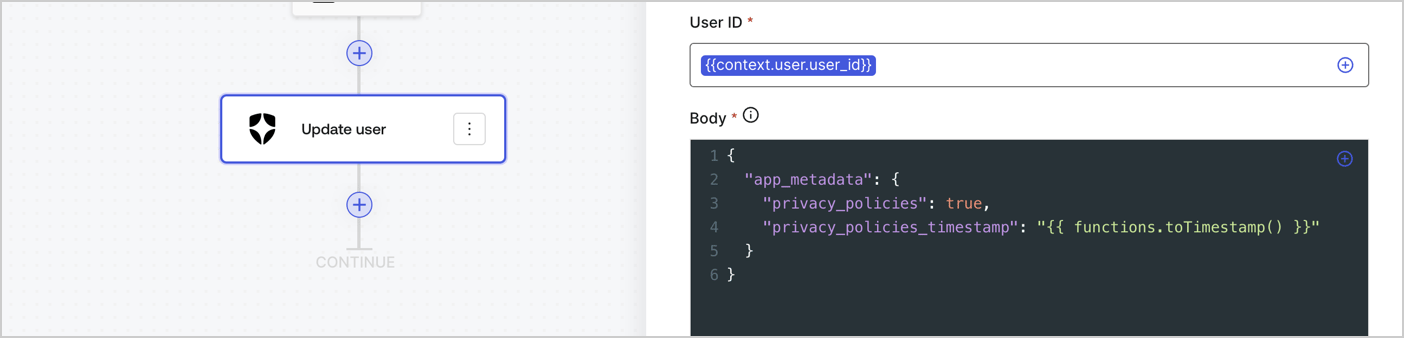
Add an Auth0 Update user action to the flow by following these steps:

1. Select the **Flow** **Update app\_metadata** > **Edit flow** to open the Flow editor in a new tab.
2. Below the StartAction, select the **+** icon to add an **Update user** action. Complete the fields below, then select **Save** to continue.

   * **Connection**: Select from the dropdown the Vault connection to your M2M application.

   * **User ID**: Enter `{{context.user.user_id}}`.

   * **Body**: Copy and paste the following code to update the app\_metadata with the privacy\_policies and privacy\_policies\_timestamp properties.

     ```text lines theme={null}
     {
       "app_metadata": {
         "privacy_policies": true,
         "privacy_policies_timestamp": "{{ functions.toTimestamp() }}"
       }
     }
     ```

   * Select **Save**.
3. Select **Publish** to save.
<Frame>
  <img src="https://mintcdn.com/docs-staging-actions-triggers-prototype/n5Xjoaq5reGHleJi/docs/images/cdy7uua7fh8z/CvMNIwWrOUwaFW4X3G28p/1fb70ae57a20749d9ffaaba8dc0b7e26/update-user-privacy.png?fit=max&auto=format&n=n5Xjoaq5reGHleJi&q=85&s=4662611a5c3afbe8275c973faa029300" alt="Dashboard > Actions > Forms > User case privacy policy code" data-og-width="1404" width="1404" data-og-height="338" height="338" data-path="docs/images/cdy7uua7fh8z/CvMNIwWrOUwaFW4X3G28p/1fb70ae57a20749d9ffaaba8dc0b7e26/update-user-privacy.png" data-optimize="true" data-opv="3" srcset="https://mintcdn.com/docs-staging-actions-triggers-prototype/n5Xjoaq5reGHleJi/docs/images/cdy7uua7fh8z/CvMNIwWrOUwaFW4X3G28p/1fb70ae57a20749d9ffaaba8dc0b7e26/update-user-privacy.png?w=280&fit=max&auto=format&n=n5Xjoaq5reGHleJi&q=85&s=4e8acc0da4a0e78c284d368ce7432c2f 280w, https://mintcdn.com/docs-staging-actions-triggers-prototype/n5Xjoaq5reGHleJi/docs/images/cdy7uua7fh8z/CvMNIwWrOUwaFW4X3G28p/1fb70ae57a20749d9ffaaba8dc0b7e26/update-user-privacy.png?w=560&fit=max&auto=format&n=n5Xjoaq5reGHleJi&q=85&s=525e3e152c81a1bfc47f106fe2184f62 560w, https://mintcdn.com/docs-staging-actions-triggers-prototype/n5Xjoaq5reGHleJi/docs/images/cdy7uua7fh8z/CvMNIwWrOUwaFW4X3G28p/1fb70ae57a20749d9ffaaba8dc0b7e26/update-user-privacy.png?w=840&fit=max&auto=format&n=n5Xjoaq5reGHleJi&q=85&s=7aa583d226cb4b7590a7c3e58e725e5f 840w, https://mintcdn.com/docs-staging-actions-triggers-prototype/n5Xjoaq5reGHleJi/docs/images/cdy7uua7fh8z/CvMNIwWrOUwaFW4X3G28p/1fb70ae57a20749d9ffaaba8dc0b7e26/update-user-privacy.png?w=1100&fit=max&auto=format&n=n5Xjoaq5reGHleJi&q=85&s=c2ad2644cb19e0b964262c96e9f4b455 1100w, https://mintcdn.com/docs-staging-actions-triggers-prototype/n5Xjoaq5reGHleJi/docs/images/cdy7uua7fh8z/CvMNIwWrOUwaFW4X3G28p/1fb70ae57a20749d9ffaaba8dc0b7e26/update-user-privacy.png?w=1650&fit=max&auto=format&n=n5Xjoaq5reGHleJi&q=85&s=74dc83f0558b1c70f9179ca380982eaa 1650w, https://mintcdn.com/docs-staging-actions-triggers-prototype/n5Xjoaq5reGHleJi/docs/images/cdy7uua7fh8z/CvMNIwWrOUwaFW4X3G28p/1fb70ae57a20749d9ffaaba8dc0b7e26/update-user-privacy.png?w=2500&fit=max&auto=format&n=n5Xjoaq5reGHleJi&q=85&s=8aff7672c1ae496aa91708bcb07c7a36 2500w" />
</Frame>

<Callout icon="file-lines" color="#0EA5E9" iconType="regular">
  The flow **Update app\_metadata** adds a `privacy_policies true` value to the app`_metadata` object and also generates a timestamp with a [helper function.](/docs/customize/forms/variables)
</Callout>

## Retrieve the form render code

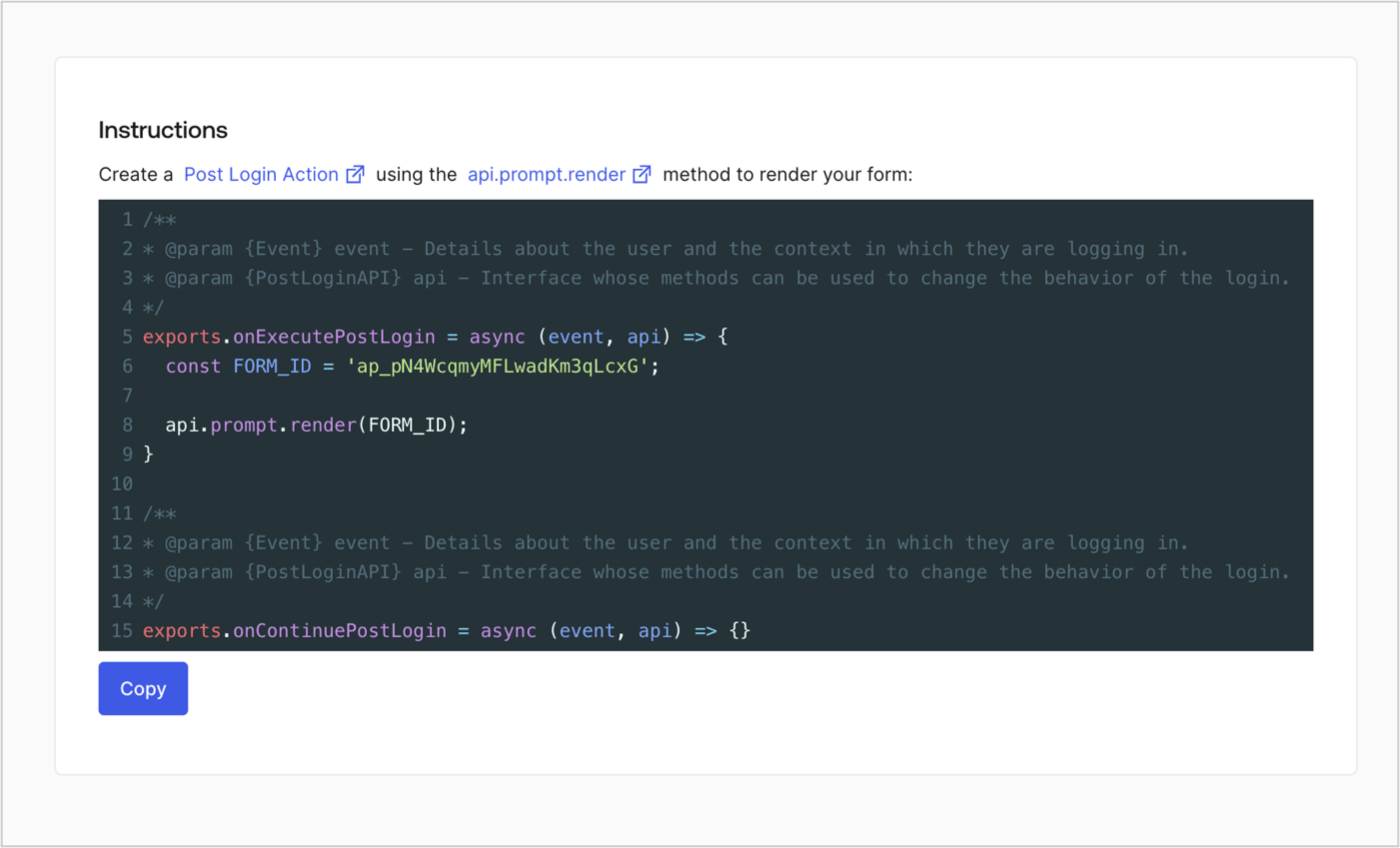
Retrieve your form render code to visually render the form with a custom Post Login Action by following these steps:

* From the Form editor, select **`<> Render`**.
* Select **Copy**.
<Frame>
  <img src="https://mintcdn.com/docs-staging-actions-triggers-prototype/1PH2qC0V_inS4tw1/docs/images/cdy7uua7fh8z/2EIUzc539sq9lwoTKbjoJv/496a864c0fc44a782c9cadca119dbfb0/embed.png?fit=max&auto=format&n=1PH2qC0V_inS4tw1&q=85&s=1d90eead3e90fc51605c17201bb9fe68" alt="Dashboard > Actions > Forms > Form > Embed" data-og-width="1400" width="1400" data-og-height="848" height="848" data-path="docs/images/cdy7uua7fh8z/2EIUzc539sq9lwoTKbjoJv/496a864c0fc44a782c9cadca119dbfb0/embed.png" data-optimize="true" data-opv="3" srcset="https://mintcdn.com/docs-staging-actions-triggers-prototype/1PH2qC0V_inS4tw1/docs/images/cdy7uua7fh8z/2EIUzc539sq9lwoTKbjoJv/496a864c0fc44a782c9cadca119dbfb0/embed.png?w=280&fit=max&auto=format&n=1PH2qC0V_inS4tw1&q=85&s=259fd4768374693794d4041e283c2433 280w, https://mintcdn.com/docs-staging-actions-triggers-prototype/1PH2qC0V_inS4tw1/docs/images/cdy7uua7fh8z/2EIUzc539sq9lwoTKbjoJv/496a864c0fc44a782c9cadca119dbfb0/embed.png?w=560&fit=max&auto=format&n=1PH2qC0V_inS4tw1&q=85&s=dd3c2604c6b8e73627e6a576554840b0 560w, https://mintcdn.com/docs-staging-actions-triggers-prototype/1PH2qC0V_inS4tw1/docs/images/cdy7uua7fh8z/2EIUzc539sq9lwoTKbjoJv/496a864c0fc44a782c9cadca119dbfb0/embed.png?w=840&fit=max&auto=format&n=1PH2qC0V_inS4tw1&q=85&s=e0ba6315699bd81c2c2a67e4401dd60f 840w, https://mintcdn.com/docs-staging-actions-triggers-prototype/1PH2qC0V_inS4tw1/docs/images/cdy7uua7fh8z/2EIUzc539sq9lwoTKbjoJv/496a864c0fc44a782c9cadca119dbfb0/embed.png?w=1100&fit=max&auto=format&n=1PH2qC0V_inS4tw1&q=85&s=3df0ffb361c94df7dbe4b10fe4750b52 1100w, https://mintcdn.com/docs-staging-actions-triggers-prototype/1PH2qC0V_inS4tw1/docs/images/cdy7uua7fh8z/2EIUzc539sq9lwoTKbjoJv/496a864c0fc44a782c9cadca119dbfb0/embed.png?w=1650&fit=max&auto=format&n=1PH2qC0V_inS4tw1&q=85&s=37c0b202c0538f27b5560a8863f15d3f 1650w, https://mintcdn.com/docs-staging-actions-triggers-prototype/1PH2qC0V_inS4tw1/docs/images/cdy7uua7fh8z/2EIUzc539sq9lwoTKbjoJv/496a864c0fc44a782c9cadca119dbfb0/embed.png?w=2500&fit=max&auto=format&n=1PH2qC0V_inS4tw1&q=85&s=fda5d2207406d6c9ddf9c5d2f97e9433 2500w" />
</Frame>

## Create a Post Login Action

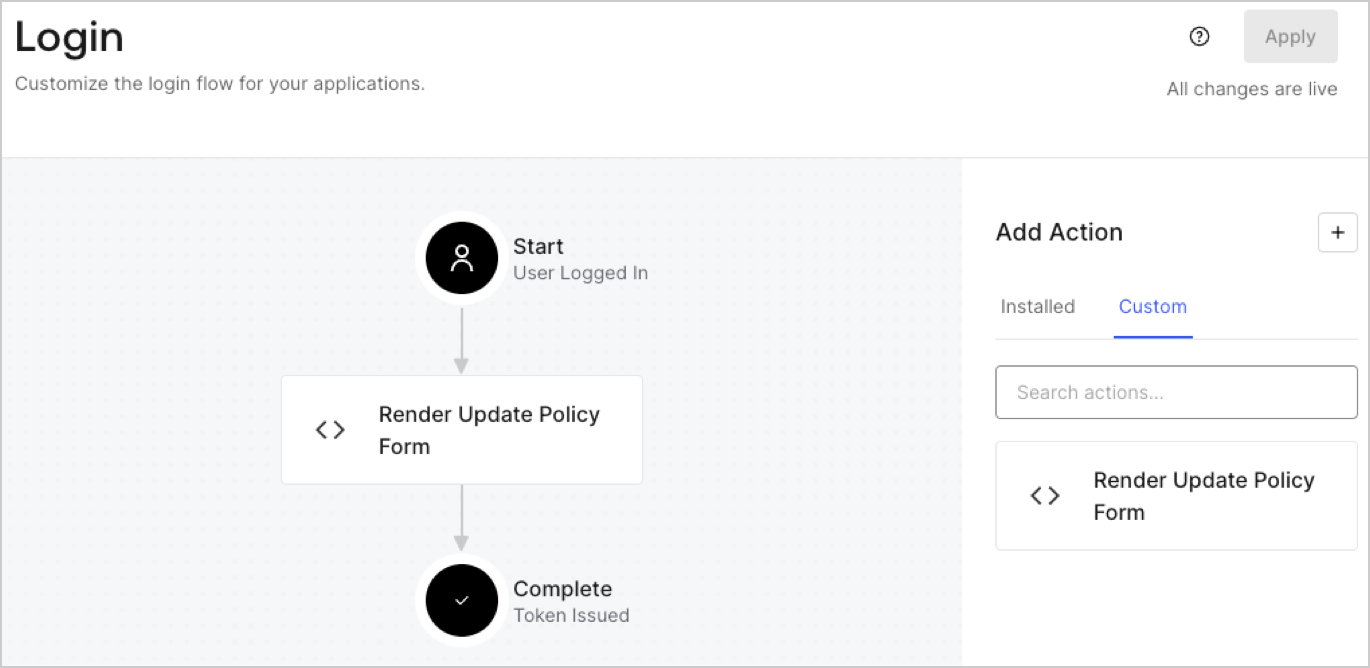
Create a post-login Action to render your form by following these steps:

1. Navigate to **Auth0 Dashboard > Actions > Flows > Login.**
2. Select the **+** icon and Select **Build from scratch**:

   * **Name**: Enter `Render Update Policy Form`.
   * **Trigger**: Select `Login / Post Login`.
   * **Runtime**: Select the recommended version.
3. Select **Create**.

To configure the post-login Action:

1. Delete the existing code from the Code editor.
2. Paste the form render code into the Code editor.
3. Edit the code to define the conditional logic that will render the form.

   ```javascript lines theme={null}
   /**
   * @param {Event} event - Details about the user and the context in which they are logging in.
   * @param {PostLoginAPI} api - Interface whose methods can be used to change the behavior of the login.
   */
   exports.onExecutePostLogin = async (event, api) => {
     const FORM_ID = 'REPLACE_WITH_YOUR_FORM_ID';

     if (event.user.app_metadata.privacy_policies !== true) {
       api.prompt.render(FORM_ID);
     }
   }

   exports.onContinuePostLogin = async (event, api) => { }
   ```

   <Callout icon="file-lines" color="#0EA5E9" iconType="regular">
     The example code above will render the form when a user is missing the app metadata `privacy_policies` property.
   </Callout>
4. Select **Deploy.**
5. Drag and Drop the **Render Update Policy Form** Action to the **Login** flow.
   <Frame>
     <img src="https://mintcdn.com/docs-staging-actions-triggers-prototype/pxNrg7KHBDx_pfH6/docs/images/cdy7uua7fh8z/5TOwDgevZsBqd7yZynUYWU/41ca909dc3007aed4f40ff794a05efa5/postlogin.png?fit=max&auto=format&n=pxNrg7KHBDx_pfH6&q=85&s=8ee75908fd50eb80b1ccd634bb6a60ff" alt="Dashboard > Forms > Use Case > Render update policy form login action" data-og-width="1370" width="1370" data-og-height="668" height="668" data-path="docs/images/cdy7uua7fh8z/5TOwDgevZsBqd7yZynUYWU/41ca909dc3007aed4f40ff794a05efa5/postlogin.png" data-optimize="true" data-opv="3" srcset="https://mintcdn.com/docs-staging-actions-triggers-prototype/pxNrg7KHBDx_pfH6/docs/images/cdy7uua7fh8z/5TOwDgevZsBqd7yZynUYWU/41ca909dc3007aed4f40ff794a05efa5/postlogin.png?w=280&fit=max&auto=format&n=pxNrg7KHBDx_pfH6&q=85&s=c20ea351f51a0b9eb0a79fe6446d55bc 280w, https://mintcdn.com/docs-staging-actions-triggers-prototype/pxNrg7KHBDx_pfH6/docs/images/cdy7uua7fh8z/5TOwDgevZsBqd7yZynUYWU/41ca909dc3007aed4f40ff794a05efa5/postlogin.png?w=560&fit=max&auto=format&n=pxNrg7KHBDx_pfH6&q=85&s=4a17390d8d722dc42ef53ae62b53a149 560w, https://mintcdn.com/docs-staging-actions-triggers-prototype/pxNrg7KHBDx_pfH6/docs/images/cdy7uua7fh8z/5TOwDgevZsBqd7yZynUYWU/41ca909dc3007aed4f40ff794a05efa5/postlogin.png?w=840&fit=max&auto=format&n=pxNrg7KHBDx_pfH6&q=85&s=8009cb58c465c61a3ddab061f0708dde 840w, https://mintcdn.com/docs-staging-actions-triggers-prototype/pxNrg7KHBDx_pfH6/docs/images/cdy7uua7fh8z/5TOwDgevZsBqd7yZynUYWU/41ca909dc3007aed4f40ff794a05efa5/postlogin.png?w=1100&fit=max&auto=format&n=pxNrg7KHBDx_pfH6&q=85&s=db641efc5a60440ba57bddcea2f54549 1100w, https://mintcdn.com/docs-staging-actions-triggers-prototype/pxNrg7KHBDx_pfH6/docs/images/cdy7uua7fh8z/5TOwDgevZsBqd7yZynUYWU/41ca909dc3007aed4f40ff794a05efa5/postlogin.png?w=1650&fit=max&auto=format&n=pxNrg7KHBDx_pfH6&q=85&s=d706eecaf73a4a9a7d16c9924f311668 1650w, https://mintcdn.com/docs-staging-actions-triggers-prototype/pxNrg7KHBDx_pfH6/docs/images/cdy7uua7fh8z/5TOwDgevZsBqd7yZynUYWU/41ca909dc3007aed4f40ff794a05efa5/postlogin.png?w=2500&fit=max&auto=format&n=pxNrg7KHBDx_pfH6&q=85&s=2fabb0044fb95667156a3902f33b172a 2500w" />
   </Frame>
6. Select **Apply.**

### Test implementation

Test the implementation by following these steps:

1. Log in with an existing user whose app`_metadata` attribute `privacy_policies` does not have a value.
2. The post-login Action in the Login flow will render the form and prompt for acceptance.
3. Select **Auth0 Dashboard > User Management > Users,** locate the user and verify that the `app_metadata` attribute `privacy_policies` contains a `true` value and a timestamp.
