> ## Documentation Index
> Fetch the complete documentation index at: https://docs-staging-actions-triggers-prototype.mintlify.site/llms.txt
> Use this file to discover all available pages before exploring further.
> Overview of importing users from external applications into Auth0.
# Import and Export Users
The **User Import/Export Extension** will be deprecated in September 2025. You can access the same features now available [directly in the Auth0 Management Dashboard](/docs/manage-users/user-migration/bulk-user-import-export).
Auth0 supports importing users from external applications using custom database connections, the Auth0 Management API, or the User Import/Export Extension.
## Automatic migrations
Auth0 supports automatic migration of users from a [custom database connection](/docs/authenticate/database-connections/custom-db) to Auth0. This practice is sometimes known as **trickle migration** or **lazy migration**. By activating this feature, your users are:
* Moved to Auth0 the first time they log in after you set up the integration.
* Not asked to reset their password as a result of the migration.
Both your specific login implementation and your Auth0 plan or custom agreement affect whether this feature is available. To learn more, read [Pricing](https://auth0.com/pricing).
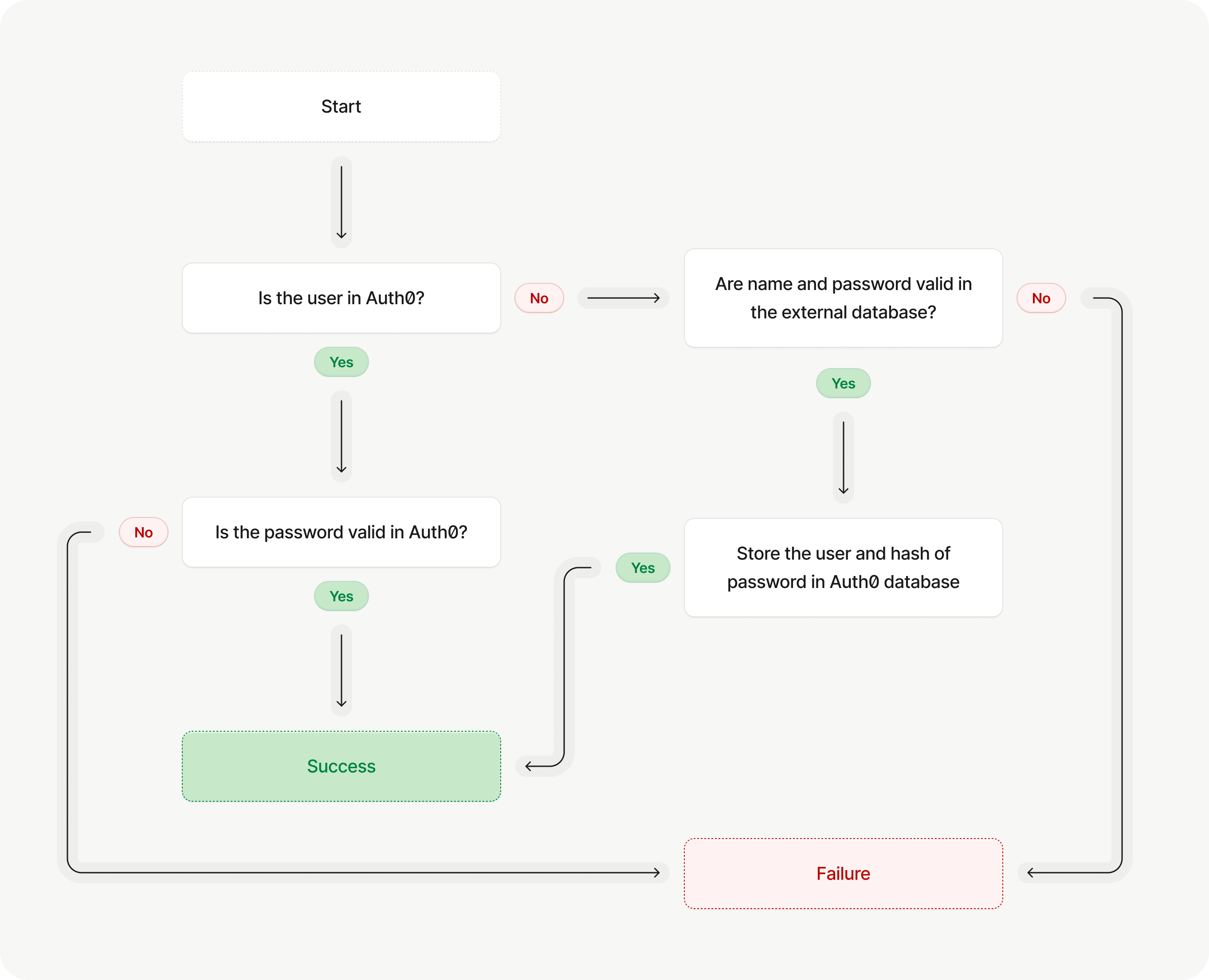
When a user authenticates via a custom database connection marked for import to Auth0, the following process takes place:
* Auth0 authenticates migrated users against the Auth0 database.
* If the user has not been migrated, Auth0 executes your custom login script and, upon successfully log in, adds the user to the Auth0 database.
* Subsequent logins result in the user's credentials retrieved from Auth0, **NOT** your custom database.
* New users are automatically added to the Auth0 database.
 ## Bulk user imports with the Management API
If you already have a user database, you can use our [`/post_users_imports`](https://auth0.com/docs/api/management/v2#!/Jobs/post_users_imports) Management API endpoint to populate a database connection with this information.
## Migrate users with the User Import/Export feature
The User Import/Export feature allows you to:
* Bulk import your existing database users into Auth0.
* Search for and export some (or all) of your Auth0 database users.
To use bulk import, you must be Dashboard Editor - Users or an Admin. To use bulk export, you must be Dashboard Viewer - Users, Editor - Users, or an Admin.
You can import and export user data using the [User Import/Export feature](/docs/manage-users/user-migration/bulk-user-import-export) available on the dashboard.
## Learn more
* [Configure Automatic Migration from Your Database](/docs/manage-users/user-migration/configure-automatic-migration-from-your-database)
* [Bulk User Imports](/docs/manage-users/user-migration/bulk-user-imports)
* [User Import / Export Extension](/docs/manage-users/user-migration/user-import-export-extension)
## Bulk user imports with the Management API
If you already have a user database, you can use our [`/post_users_imports`](https://auth0.com/docs/api/management/v2#!/Jobs/post_users_imports) Management API endpoint to populate a database connection with this information.
## Migrate users with the User Import/Export feature
The User Import/Export feature allows you to:
* Bulk import your existing database users into Auth0.
* Search for and export some (or all) of your Auth0 database users.
To use bulk import, you must be Dashboard Editor - Users or an Admin. To use bulk export, you must be Dashboard Viewer - Users, Editor - Users, or an Admin.
You can import and export user data using the [User Import/Export feature](/docs/manage-users/user-migration/bulk-user-import-export) available on the dashboard.
## Learn more
* [Configure Automatic Migration from Your Database](/docs/manage-users/user-migration/configure-automatic-migration-from-your-database)
* [Bulk User Imports](/docs/manage-users/user-migration/bulk-user-imports)
* [User Import / Export Extension](/docs/manage-users/user-migration/user-import-export-extension)