> ## Documentation Index
> Fetch the complete documentation index at: https://docs-staging-actions-triggers-prototype.mintlify.site/llms.txt
> Use this file to discover all available pages before exploring further.
> Learn how to customize multi-factor authentication (MFA) pages that appear to users with Universal Login branding options.
# Customize Multi-Factor Authentication Pages
These customizations do not apply to Duo, which has its own user interface.
You can customize the MFA pages that appear to your users by adjusting the Universal Login branding options in the [Universal Login Settings](https://manage.auth0.com/#/login_settings) section of the Auth0 Dashboard.
If you are using the Universal Login experience, you can customize the page using its flow customization options.
You can also customize the full HTML content to reflect your organization's particular user experience requirements. To learn more, read [MFA Widget Theme Options](/docs/secure/multi-factor-authentication/customize-mfa/mfa-widget-theme-options).
With the Universal Login Experience, MFA is presented even more simply to the user. Once they have entered their credentials to log in, they are presented with the MFA screen. If they have no MFA factor enrolled, they will be asked to enroll, and if they do, they will be asked to present their MFA credential.
## Use the MFA API
Auth0 provides an [MFA API](/docs/secure/multi-factor-authentication/multi-factor-authentication-developer-resources/mfa-api) for the following scenarios:
* [Authenticate users with the Resource Owner Password Grant](/docs/secure/multi-factor-authentication/authenticate-using-ropg-flow-with-mfa).
* Build an interface to [let users manage their own authentication factors](/docs/secure/multi-factor-authentication/manage-mfa-auth0-apis/manage-authenticator-factors-mfa-api).
* Invite users to enroll in MFA using [enrollment tickets](/docs/secure/multi-factor-authentication/multi-factor-authentication-developer-resources/create-custom-enrollment-tickets).
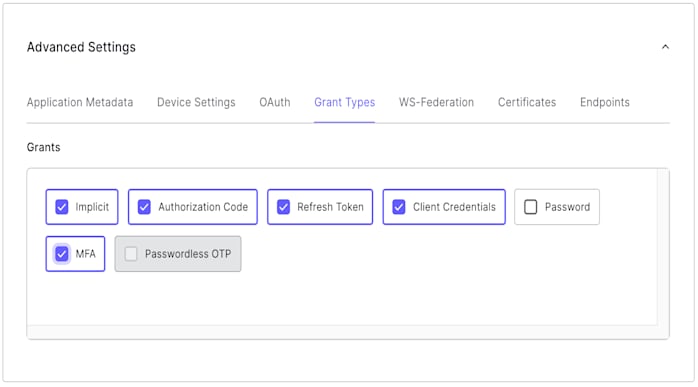
To use the MFA API, you must enable the MFA grant type for your application. To enable the MFA grant in the Auth0 Dashboard:
1. Go to [Dashboard > Applications > Applications](https://manage.auth0.com/#/applications) and select your application.
2. At the bottom of the **Settings** tab, click **Advanced Settings**.
3. Click the **Grant Types** tab and select **MFA**.
 To learn more, read [Enable Multi-Factor Authentication](/docs/secure/multi-factor-authentication/enable-mfa).
4. Click **Save Changes**.
### Limitations
The MFA API is designed to work with SMS, push notifications within the Guardian application, email, and OTP factors. It does not support enrolling with Duo.
## Customize MFA policy with Actions
You can use Actions to customize the MFA policy for your tenant, including requiring MFA for users of specific applications, users with specific user metadata or IP ranges, and more.
If you're unfamiliar with creating Actions, read [Write Your First Action](/docs/customize/actions/write-your-first-action).
Any and all MFA-related behavior defined in Actions take precedence over the **Define policy** settings configured in the **Multi-Factor Auth** section of the Dashboard.
To learn more, read [Enable Multi-Factor Authentication](/docs/secure/multi-factor-authentication/enable-mfa).
When writing Actions, you can use the `provider` setting to specify whether to force MFA, and which factor you use. The behavior is different depending on whether you use the Classic or the Universal Login experience:
| Provider | Classic Experience | New Experience |
| -------------------- | -------------------- | --------------------------------------------------------------------- |
| any | Push, SMS, or OTP | Push, SMS, Voice, OTP, Email, or WebAuthN security key (when enabled) |
| guardian | Push, SMS, or OTP | Push, SMS, OTP, or Email |
| google-authenticator | Google Authenticator | Push, SMS, OTP, or Email |
| duo | Duo | Duo |
If you are using Universal Login you can get the behavior of the Classic Login experience if you enable customization of the MFA login page.
The `guardian` and `google-authenticator` options are legacy settings that are kept for backward compatibility reasons, and should not be used moving forward. We recommend using `any` instead. The `google-authenticator` option does not let users enroll a recovery code.
Setting the `provider` to a specific option manually overrides the enabled/disabled toggles in the Dashboard. You can use the following Action to prompt the user to enroll in Duo even if other factors are enabled in the Dashboard:
```js lines theme={null}
exports.onExecutePostLogin = async (event, api) => {
// Forcing the provider to Duo programmatically
api.multifactor.enable('duo')
}
```
## Common use case examples
Here are some common contextual MFA scenarios that can be handled by Actions.
To ensure that your tenant triggers MFA only when you explicitly require it in your Actions, set your tenant's default MFA policy to **Never**.
For more information, read the "Policies" section in [Multi-Factor Authentication Factors](/docs/secure/multi-factor-authentication/multi-factor-authentication-factors#policies).
### Require MFA for specific applications
You can customize MFA to only trigger when users are logging in to to specific applications.
```js lines theme={null}
exports.onExecutePostLogin = async (event, api) => {
const CLIENTS_WITH_MFA = [
'{yourClientId1}',
'{yourClientId2}',
'{yourClientId3}'
];
if (CLIENTS_WITH_MFA.includes(event.client.client_id)) {
api.multifactor.enable('duo', { allowRememberBrowser: false })
}
}
```
### Require MFA for specific users
You can customize MFA to only trigger for users who are marked to use MFA.
```js lines theme={null}
exports.onExecutePostLogin = async (event, api) => {
if (event.user.user_metadata && event.user.user_metadata.use_mfa) {
api.multifactor.enable('duo', { allowRememberBrowser: false });
}
}
```
### Change frequency of MFA prompts
In some scenarios, you may not want to prompt the user for MFA each time they log in from the same browser. You can alter that behavior by using the `allowRememberBrowser` property:
```js lines theme={null}
exports.onExecutePostLogin = async (event, api) => {
api.multifactor.enable('any', { allowRememberBrowser: false });
}
```
Depending on the property value the behavior will be as follows:
| Value | Description |
| ------- | ------------------------------------------------------------------------------------------------------------------------------------------------------------------------------------------------------------------------------------------------------------------------------------------------------------------------------------------------------------------------------------------- |
| `true` | When provider is set to `google-authenticator` or `duo`, the user is prompted for MFA once every 30 days. When provider is set to `guardian`, the MFA prompt displays the enrollment checkbox for users to choose whether or not to enroll. Defaults to `false`. To learn more, read [Customize Multi-Factor Authentication Pages ](/docs/secure/multi-factor-authentication/customize-mfa) |
| `false` | The user is prompted for MFA each time they authenticate. |
The time values are for active users. If a user is inactive for a period of seven days or more, their cookie will expire and they will be prompted for MFA on their next login attempt (regardless if `allowRememberBrowser` is set to `true` and it has not been 30 days since their last MFA prompt).
When you allow the user to skip MFA, a cookie is stored in the user's browser. If the user has the cookie set but you still want to require MFA, you have two options:
* Set `allowRememberBrowser` to `false`
* Set `acr_values` to `http://schemas.openid.net/pape/policies/2007/06/multi-factor` when calling the `/authorize` endpoint.
In situations where a user loses a trusted device, you can prompt the specific user for MFA during their next login by calling the Auth0 Management API [Invalidate Remember Browser](https://auth0.com/docs/api/management/v2#!/Users/post_invalidate_remember_browser) endpoint.
### Require MFA for users outside of the network
Assuming that access to the specified network of internal IP addresses is well controlled, you can also have Auth0 request MFA only from users whose requests originate from outside the corporate network:
```js lines theme={null}
exports.onExecutePostLogin = async (event, api) => {
const ipaddr = require('ipaddr.js@1.9.0');
const corp_network = '192.168.1.134/26';
const current_ip = ipaddr.parse(event.request.ip);
if (!current_ip.match(ipaddr.parseCIDR(corp_network))) {
api.multifactor.enable('any', {allowRememberBrowser: false});
}
}
```
### Bypass MFA for refresh token requests
If your users report frequent log-outs, you may need to bypass refresh token requests while using MFA. You can alter the default behavior with a filter Action on the `event.transaction.protocol` object property.
```js lines theme={null}
exports.onExecutePostLogin = async (event, api) => {
if (event.transaction.protocol !== 'oauth2-refresh-token') {
// MFA-related commands here
api.multifactor.enable('any');
}
};
```
To learn more about the Action `event` object, read [Actions Triggers: post-login - Event Object](/docs/customize/actions/explore-triggers/signup-and-login-triggers/login-trigger/post-login-event-object).
## Learn more
* [Customize MFA for Classic Login](/docs/secure/multi-factor-authentication/customize-mfa/customize-mfa-classic-login)
* [Authenticate Using the Resource Owner Password Flow with MFA](/docs/secure/multi-factor-authentication/authenticate-using-ropg-flow-with-mfa)
* [Auth0 MFA API](/docs/secure/multi-factor-authentication/multi-factor-authentication-developer-resources/mfa-api)
* [Manage Authentication Factors with Authentication API](/docs/secure/multi-factor-authentication/manage-mfa-auth0-apis/manage-authenticator-factors-mfa-api)
* [MFA Widget Theme Options](/docs/secure/multi-factor-authentication/customize-mfa/mfa-widget-theme-options)
* [MFA Theme Language Dictionary](/docs/secure/multi-factor-authentication/customize-mfa/mfa-theme-language-dictionary)
To learn more, read [Enable Multi-Factor Authentication](/docs/secure/multi-factor-authentication/enable-mfa).
4. Click **Save Changes**.
### Limitations
The MFA API is designed to work with SMS, push notifications within the Guardian application, email, and OTP factors. It does not support enrolling with Duo.
## Customize MFA policy with Actions
You can use Actions to customize the MFA policy for your tenant, including requiring MFA for users of specific applications, users with specific user metadata or IP ranges, and more.
If you're unfamiliar with creating Actions, read [Write Your First Action](/docs/customize/actions/write-your-first-action).
Any and all MFA-related behavior defined in Actions take precedence over the **Define policy** settings configured in the **Multi-Factor Auth** section of the Dashboard.
To learn more, read [Enable Multi-Factor Authentication](/docs/secure/multi-factor-authentication/enable-mfa).
When writing Actions, you can use the `provider` setting to specify whether to force MFA, and which factor you use. The behavior is different depending on whether you use the Classic or the Universal Login experience:
| Provider | Classic Experience | New Experience |
| -------------------- | -------------------- | --------------------------------------------------------------------- |
| any | Push, SMS, or OTP | Push, SMS, Voice, OTP, Email, or WebAuthN security key (when enabled) |
| guardian | Push, SMS, or OTP | Push, SMS, OTP, or Email |
| google-authenticator | Google Authenticator | Push, SMS, OTP, or Email |
| duo | Duo | Duo |
If you are using Universal Login you can get the behavior of the Classic Login experience if you enable customization of the MFA login page.
The `guardian` and `google-authenticator` options are legacy settings that are kept for backward compatibility reasons, and should not be used moving forward. We recommend using `any` instead. The `google-authenticator` option does not let users enroll a recovery code.
Setting the `provider` to a specific option manually overrides the enabled/disabled toggles in the Dashboard. You can use the following Action to prompt the user to enroll in Duo even if other factors are enabled in the Dashboard:
```js lines theme={null}
exports.onExecutePostLogin = async (event, api) => {
// Forcing the provider to Duo programmatically
api.multifactor.enable('duo')
}
```
## Common use case examples
Here are some common contextual MFA scenarios that can be handled by Actions.
To ensure that your tenant triggers MFA only when you explicitly require it in your Actions, set your tenant's default MFA policy to **Never**.
For more information, read the "Policies" section in [Multi-Factor Authentication Factors](/docs/secure/multi-factor-authentication/multi-factor-authentication-factors#policies).
### Require MFA for specific applications
You can customize MFA to only trigger when users are logging in to to specific applications.
```js lines theme={null}
exports.onExecutePostLogin = async (event, api) => {
const CLIENTS_WITH_MFA = [
'{yourClientId1}',
'{yourClientId2}',
'{yourClientId3}'
];
if (CLIENTS_WITH_MFA.includes(event.client.client_id)) {
api.multifactor.enable('duo', { allowRememberBrowser: false })
}
}
```
### Require MFA for specific users
You can customize MFA to only trigger for users who are marked to use MFA.
```js lines theme={null}
exports.onExecutePostLogin = async (event, api) => {
if (event.user.user_metadata && event.user.user_metadata.use_mfa) {
api.multifactor.enable('duo', { allowRememberBrowser: false });
}
}
```
### Change frequency of MFA prompts
In some scenarios, you may not want to prompt the user for MFA each time they log in from the same browser. You can alter that behavior by using the `allowRememberBrowser` property:
```js lines theme={null}
exports.onExecutePostLogin = async (event, api) => {
api.multifactor.enable('any', { allowRememberBrowser: false });
}
```
Depending on the property value the behavior will be as follows:
| Value | Description |
| ------- | ------------------------------------------------------------------------------------------------------------------------------------------------------------------------------------------------------------------------------------------------------------------------------------------------------------------------------------------------------------------------------------------- |
| `true` | When provider is set to `google-authenticator` or `duo`, the user is prompted for MFA once every 30 days. When provider is set to `guardian`, the MFA prompt displays the enrollment checkbox for users to choose whether or not to enroll. Defaults to `false`. To learn more, read [Customize Multi-Factor Authentication Pages ](/docs/secure/multi-factor-authentication/customize-mfa) |
| `false` | The user is prompted for MFA each time they authenticate. |
The time values are for active users. If a user is inactive for a period of seven days or more, their cookie will expire and they will be prompted for MFA on their next login attempt (regardless if `allowRememberBrowser` is set to `true` and it has not been 30 days since their last MFA prompt).
When you allow the user to skip MFA, a cookie is stored in the user's browser. If the user has the cookie set but you still want to require MFA, you have two options:
* Set `allowRememberBrowser` to `false`
* Set `acr_values` to `http://schemas.openid.net/pape/policies/2007/06/multi-factor` when calling the `/authorize` endpoint.
In situations where a user loses a trusted device, you can prompt the specific user for MFA during their next login by calling the Auth0 Management API [Invalidate Remember Browser](https://auth0.com/docs/api/management/v2#!/Users/post_invalidate_remember_browser) endpoint.
### Require MFA for users outside of the network
Assuming that access to the specified network of internal IP addresses is well controlled, you can also have Auth0 request MFA only from users whose requests originate from outside the corporate network:
```js lines theme={null}
exports.onExecutePostLogin = async (event, api) => {
const ipaddr = require('ipaddr.js@1.9.0');
const corp_network = '192.168.1.134/26';
const current_ip = ipaddr.parse(event.request.ip);
if (!current_ip.match(ipaddr.parseCIDR(corp_network))) {
api.multifactor.enable('any', {allowRememberBrowser: false});
}
}
```
### Bypass MFA for refresh token requests
If your users report frequent log-outs, you may need to bypass refresh token requests while using MFA. You can alter the default behavior with a filter Action on the `event.transaction.protocol` object property.
```js lines theme={null}
exports.onExecutePostLogin = async (event, api) => {
if (event.transaction.protocol !== 'oauth2-refresh-token') {
// MFA-related commands here
api.multifactor.enable('any');
}
};
```
To learn more about the Action `event` object, read [Actions Triggers: post-login - Event Object](/docs/customize/actions/explore-triggers/signup-and-login-triggers/login-trigger/post-login-event-object).
## Learn more
* [Customize MFA for Classic Login](/docs/secure/multi-factor-authentication/customize-mfa/customize-mfa-classic-login)
* [Authenticate Using the Resource Owner Password Flow with MFA](/docs/secure/multi-factor-authentication/authenticate-using-ropg-flow-with-mfa)
* [Auth0 MFA API](/docs/secure/multi-factor-authentication/multi-factor-authentication-developer-resources/mfa-api)
* [Manage Authentication Factors with Authentication API](/docs/secure/multi-factor-authentication/manage-mfa-auth0-apis/manage-authenticator-factors-mfa-api)
* [MFA Widget Theme Options](/docs/secure/multi-factor-authentication/customize-mfa/mfa-widget-theme-options)
* [MFA Theme Language Dictionary](/docs/secure/multi-factor-authentication/customize-mfa/mfa-theme-language-dictionary)